Create an External Client App for client credentials
Connecting an org with client credentials, the recommended method, needs an app on the Salesforce side that bluefactory authenticates against. This page walks through creating it.
You do this once per org, in Salesforce Setup, as a Salesforce administrator. It takes about five minutes and produces the three values the Connect org form asks for:
- your My Domain URL
- the app's consumer key
- the app's consumer secret
External Client Apps are the current Salesforce app framework, replacing the older Connected Apps. Everything below happens in the External Client App Manager.
1. Create a dedicated integration user
bluefactory connects as a single Salesforce user. Every API call runs as this run-as user, and its permissions are the ceiling on what bluefactory can do.
- Go to Setup → Users → Users and click New User.
- Fill in the details:
- First Name / Last Name: e.g. bluefactory Integration. It appears on every record the user touches.
- Email: a team mailbox, not a personal address.
- Username: must be unique across every Salesforce org, e.g.
bluefactory@yourcompany.com.bf. - User License: Salesforce.
- Profile: Minimum Access - Salesforce. Everything bluefactory needs comes from the permission set in step 2.
- Click Save.
Keep the user Active: a frozen or deactivated run-as user breaks the connection. It never has to log in.
Salesforce sells a cheaper Salesforce Integration user license for this kind of API-only account. Choose it as the User License above, with the Minimum Access - API Only Integrations profile, and build the permission set in step 2 on the Salesforce API Integration permission set license instead of None.
2. Create a permission set for bluefactory
The integration user's profile grants it nothing, so everything bluefactory can do arrives through a dedicated permission set.
Permissions to grant
| Permission | Why bluefactory needs it |
|---|---|
| API Enabled | Required for any API access at all. |
| View All Data | Captures records outside the run-as user's own sharing. Without it a backup quietly protects only the slice of the org that one user happens to see. |
| Query All Files | Captures Salesforce Files (ContentVersion / ContentDocument). Even with View All Data, a user without it can only query the files it owns, so everyone else's files are never backed up. |
| View All Users | Backs up the User object completely, and lets owner and creator references resolve on restore. Matters when the org-wide default for User is Private. |
| Modify All Data | Only for writing back to the org: restore, sandbox seeding, archive delete and purge. |
| Bulk API Hard Delete | Only if you purge or archive-delete with the Recycle Bin bypassed. |
| Modify Metadata Through Metadata API Functions | Metadata capture for Change Tracker and Security Center. Tick View Setup and Configuration alongside it. You can skip both if you granted Modify All Data. |
| View Encrypted Data | Only if you use Classic encrypted fields and want their real values in the backup rather than masked ones. |
View All Data overrides sharing, not field-level security. A field the run-as user can't see isn't in the backup, and can't be restored. Check FLS for the objects that matter to you.
Create and assign the permission set
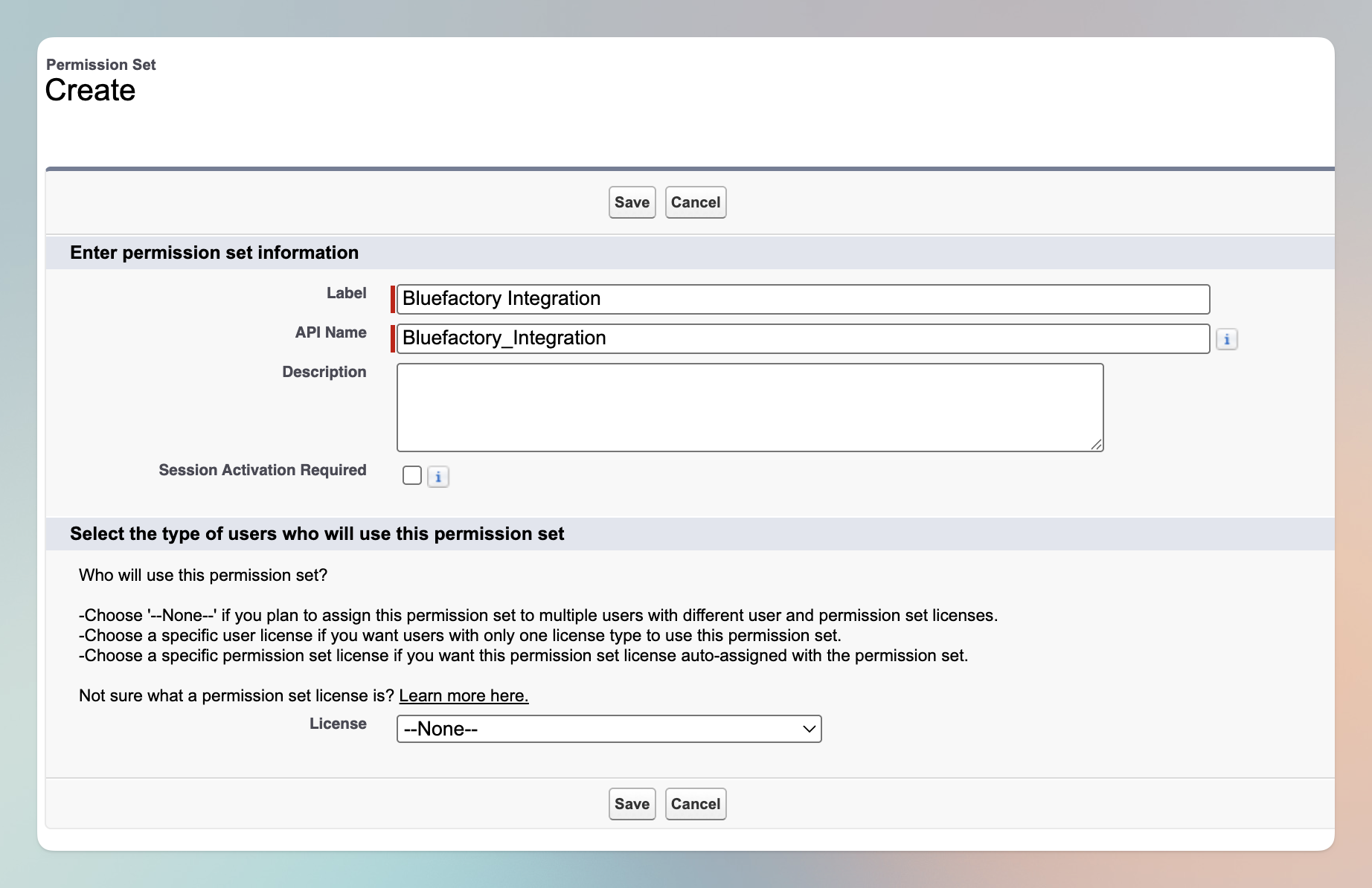
- Go to Setup → Users → Permission Sets and click New.
- Label: e.g. bluefactory Integration. The API Name fills in automatically.
- License: leave it as None, so the set can be assigned to a user on any license.
- Click Save.
- Open System Permissions, click Edit, and tick the permissions from the table above. Salesforce asks you to confirm the powerful ones, which is expected. Save.
- Open App Permissions, click Edit, and tick Query All Files under Content. It's the one permission that isn't in System Permissions, and the one most people miss. Save.
- Click Manage Assignments → Add Assignment, select your integration user, and click Assign.
Every backup run starts with a permission preflight. If the run-as user lacks View All Data, or Query All Files with Files in scope, the run report warns and flags the capture incomplete. See Monitoring runs and reports.
3. Find your My Domain URL
Go to Setup → Company Settings → My Domain and copy the Current My Domain URL. It looks like https://mydomain.my.salesforce.com, or https://mydomain--uat.sandbox.my.salesforce.com for a sandbox.
Use this URL, not login.salesforce.com or test.salesforce.com: the client credentials flow is only served by an org's own domain.
4. Create the app
- In Salesforce, go to Setup → Apps → External Client App Manager.
- Click New External Client App.
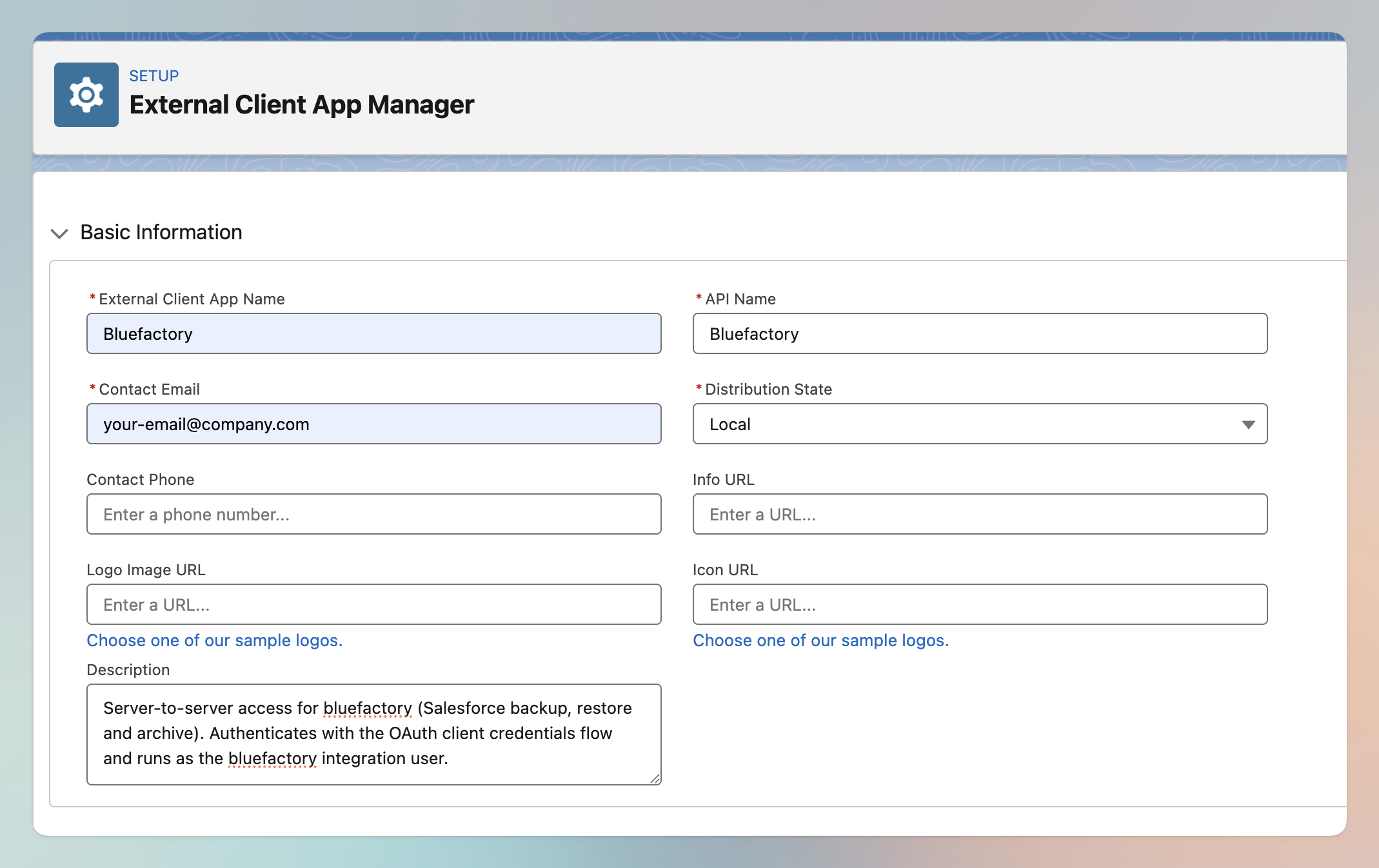
- Fill in the basic information:
- External Client App Name: e.g. bluefactory.
- API Name: filled in automatically.
- Contact Email: your admin's address.
- Description: Server-to-server access for bluefactory (Salesforce backup, restore and archive). Authenticates with the OAuth client credentials flow and runs as the bluefactory integration user.
- Distribution State: Local (the app is only for your own org).
- Click Create.
5. Enable OAuth and the Client Credentials Flow
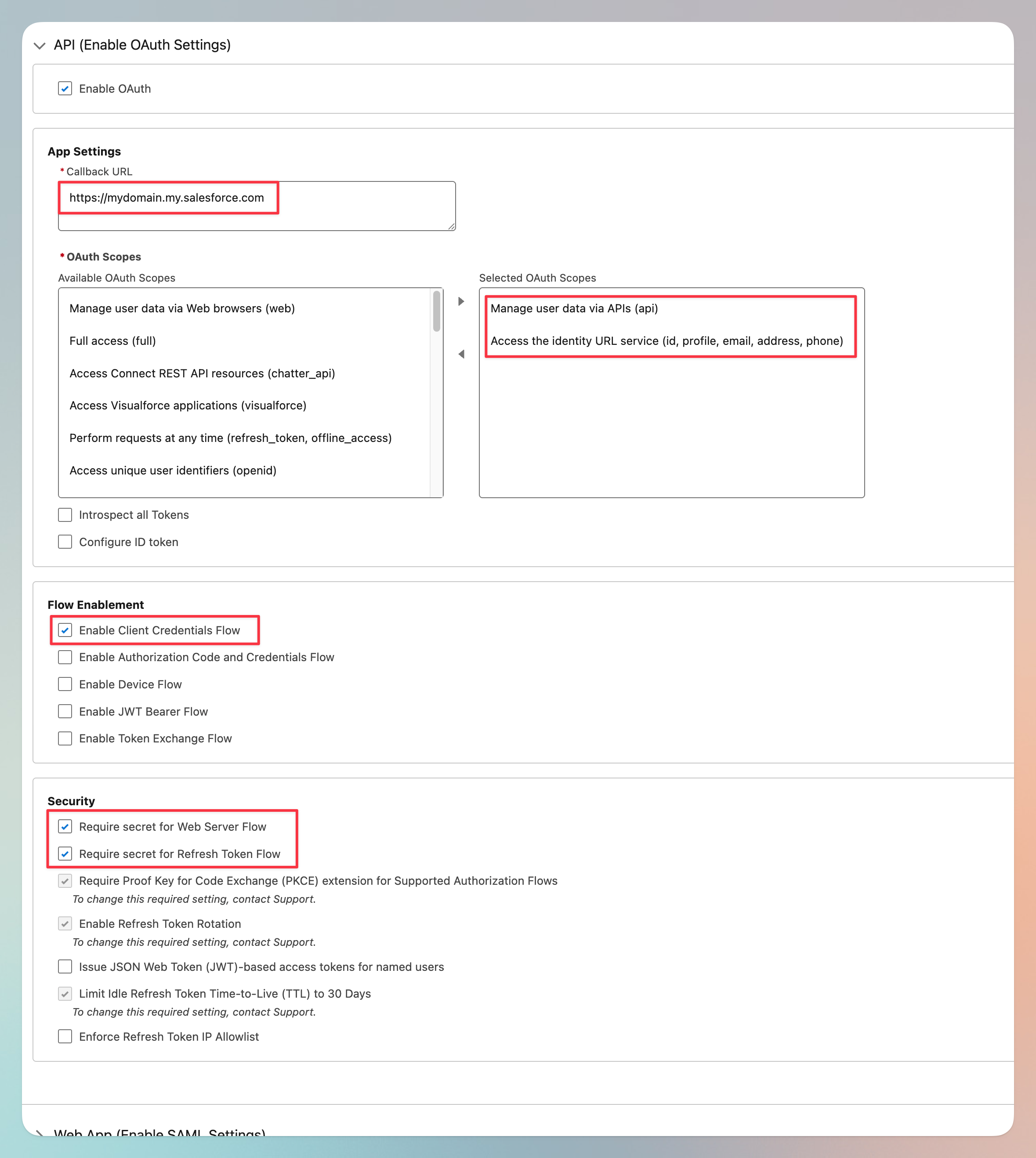
Open the app's API (Enable OAuth Settings) section and click Edit.
- Turn on Enable OAuth.
- Callback URL: required by the form, though this flow never redirects. Paste the My Domain URL from step 3.
- Add these OAuth Scopes, both of them:
- Manage user data via APIs (
api): covers the REST, Bulk and Metadata API calls bluefactory makes. - Access the identity URL service (
id,profile,email,address,phone): bluefactory reads the Identity URL when connecting, to record which user and org the connection belongs to.
- Manage user data via APIs (
- Under Flow Enablement, tick Enable Client Credentials Flow. You pick the user it runs as in step 6.
- Under Security, turn on Require Secret for Web Server Flow and Require Secret for Refresh Token Flow.
- Save.
6. Set the run-as user
Without a Run As user, every connection attempt fails.
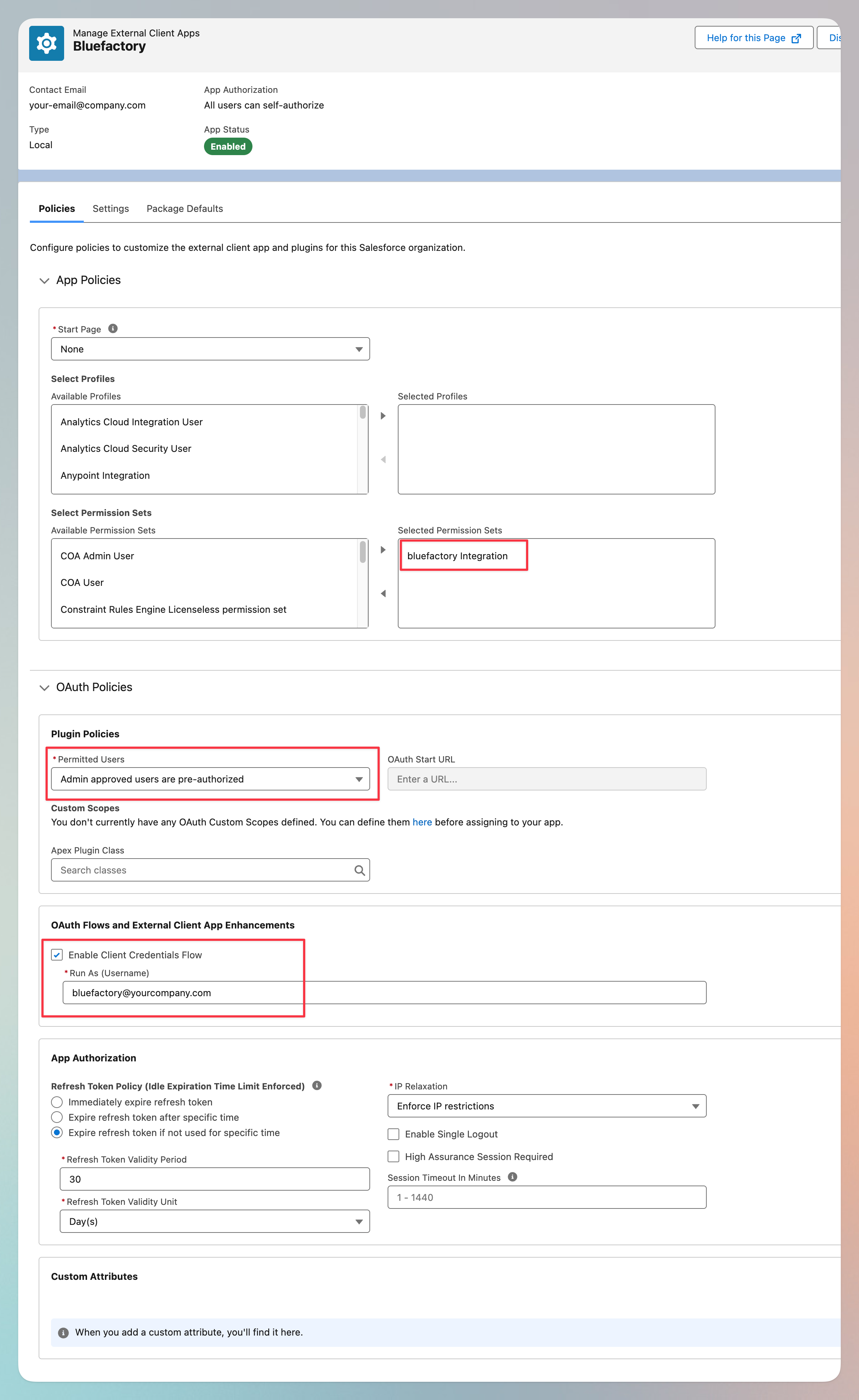
- Open the app's Policies tab and click Edit.
- Under App Policies → Select Permission Sets, move your bluefactory Integration permission set into Selected Permission Sets.
- Under OAuth Policies → Plugin Policies, set Permitted Users to Admin approved users are pre-authorized.
- Under OAuth Flows and External Client App Enhancements, tick Enable Client Credentials Flow and set Run As (Username) to your integration user.
- Save.
7. Collect the consumer key and secret
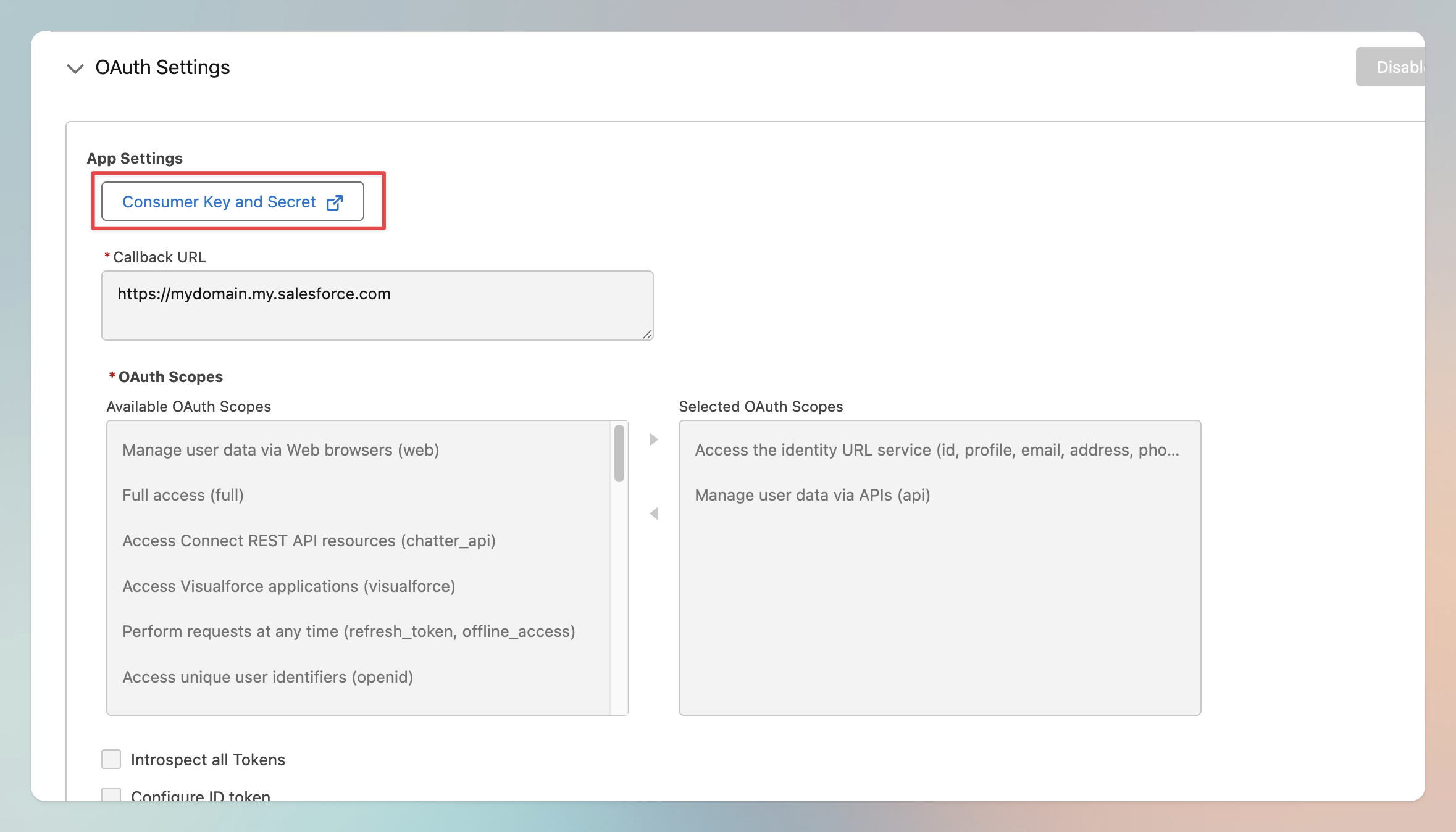
- On the app's Settings tab, open OAuth Settings and click Consumer Key and Secret.
- Verify your identity when Salesforce prompts you.
- Copy the Consumer Key and Consumer Secret.
Together they grant API access to your org as the run-as user. Paste them straight into bluefactory rather than sending them by email or chat. bluefactory encrypts the secret at rest.
8. Connect the org in bluefactory
Go to Settings → Salesforce Orgs → Connect org, open the Client credentials tab, and paste in the My Domain URL, consumer key and consumer secret. Turn on Sandbox org if it's a sandbox, then click Connect org.
bluefactory authenticates immediately, so you'll know at once if something is wrong. See Connect your Salesforce org.
Salesforce takes up to ten minutes to propagate a brand-new app. If the first attempt fails with an invalid_client error, wait and try again before changing anything.
Troubleshooting
| What you see | What it usually means |
|---|---|
invalid_client / invalid_client_id | The consumer key or secret is wrong, or the app hasn't propagated yet. Re-copy both values and retry after a few minutes. |
unsupported_grant_type | Enable Client Credentials Flow isn't ticked on the app. |
invalid_grant or "user hasn't approved this consumer" | No Run As user is set, or that user isn't pre-authorized for the app (step 6). |
| The connection works but backups capture very little | Field-level security or object access on the run-as user is narrowing the capture. If files are what's missing, confirm Query All Files is enabled. |
| The connection stops working suddenly | Check that the run-as user is still active and licensed, and that the app hasn't been deleted or its secret rotated in Salesforce. |
Rotating the secret in Salesforce doesn't update bluefactory. After a rotation, run Connect org again for the same org with the new secret. The connection is refreshed in place and recorded in the Audit Trail.